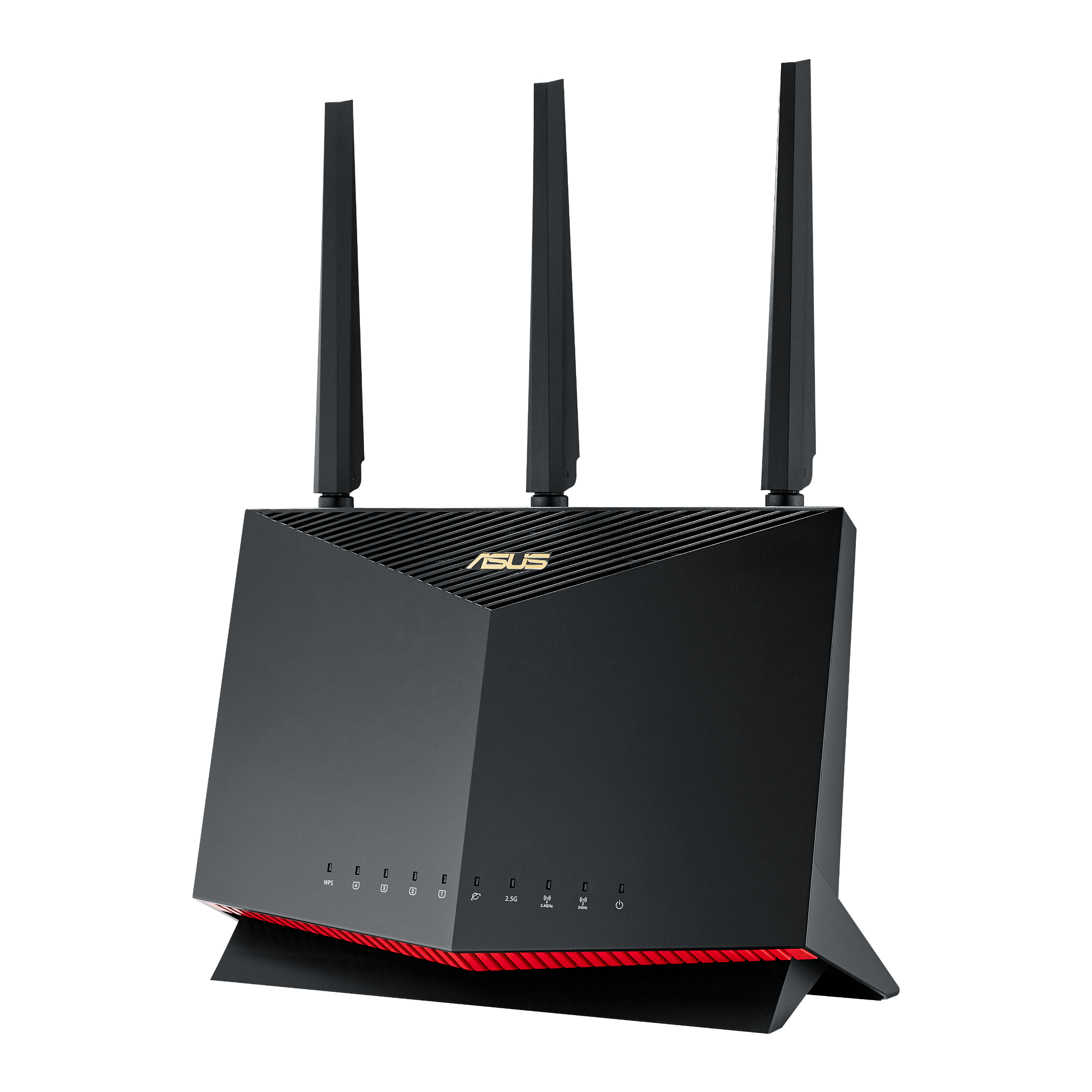
How to Set Up the ASUS RT-AX86U Pro
The ASUS RT-AX86U Pro is a powerhouse router, but to get the most out of its Wi-Fi 6 capabilities and gaming features, it needs to be configured correctly. Follow this step-by-step guide to get your network running flawlessly.
Step 1: Physical Connections
Before turning anything on, attach the three external antennas to the gold connectors on the top of the router. Angle the middle antenna straight up, and the two side antennas at a slight 45-degree outward angle for optimal coverage.
- Turn off your broadband modem.
- Connect the provided Ethernet cable from your modem into the blue WAN port on the back of the ASUS router.
- Plug the router into a power outlet and turn it on. Wait 2 minutes for the LED lights to stabilize.
Using a Gigabit+ Plan?
If your internet plan is faster than 1 Gigabit (1000 Mbps), do not use the blue WAN port. Instead, plug your modem into the 2.5G port to ensure you aren't bottlenecking your incoming speed.
Step 2: The ASUS Router App
While you can set up the router using a web browser, the ASUS Router mobile app is significantly faster and more user-friendly.
- Download the "ASUS Router" app from the iOS App Store or Google Play Store.
- Connect your smartphone to the default ASUS Wi-Fi network (the network name is printed on the sticker on the back of the router).
- Open the app and tap "Setup a new router."
Step 3: Network Configuration
The app will guide you through creating your new network credentials.
- Create a Login: You will be asked to create an admin username and password. Do not lose this; you need it to change settings later.
- Name Your Wi-Fi: Create your SSID (Wi-Fi Name) and a strong password. We recommend keeping "Smart Connect" enabled, which combines your 2.4GHz and 5GHz bands into one single network name, allowing the router to automatically assign devices to the best frequency.
Step 4: Firmware & Optimization
Once connected, the app will likely prompt you to perform a firmware update. Do not skip this. ASUS frequently releases updates to patch security vulnerabilities and improve wireless stability.
Finally, if you are a gamer, navigate to the "Mobile Game Mode" section in the app to prioritize your gaming devices and reduce latency.